
Project command structure
Control work through a clear hierarchy: projects, boards, lists, cards, checklist groups, and checklist items.
Track turns project delivery into a readable operating system: command containers, workstream boards, staged lists, execution cards, checklist detail, evidence, comments, timelines, and activity history all connected in one workspace.
Track is designed for serious delivery work where status, proof, ownership, and next actions must stay clear.
Control work through a clear hierarchy: projects, boards, lists, cards, checklist groups, and checklist items.

Keep expected delivery, due dates, overdue items, and movement visible before work starts slipping.
Store screenshots, files, links, notes, comments, and proof on the exact card or checklist item where they belong.

Separate execution items from rules, references, notes, decisions, and future work so progress stays honest.

Run testing, review gaps, record blockers, preserve decisions, and move deliverables toward a clean release.

Coordinate owners, contributors, requests, approvals, activity history, and project visibility in one workspace.
A product-level preview of how Track connects project structure, delivery pressure, evidence, activity history, and safer data movement.
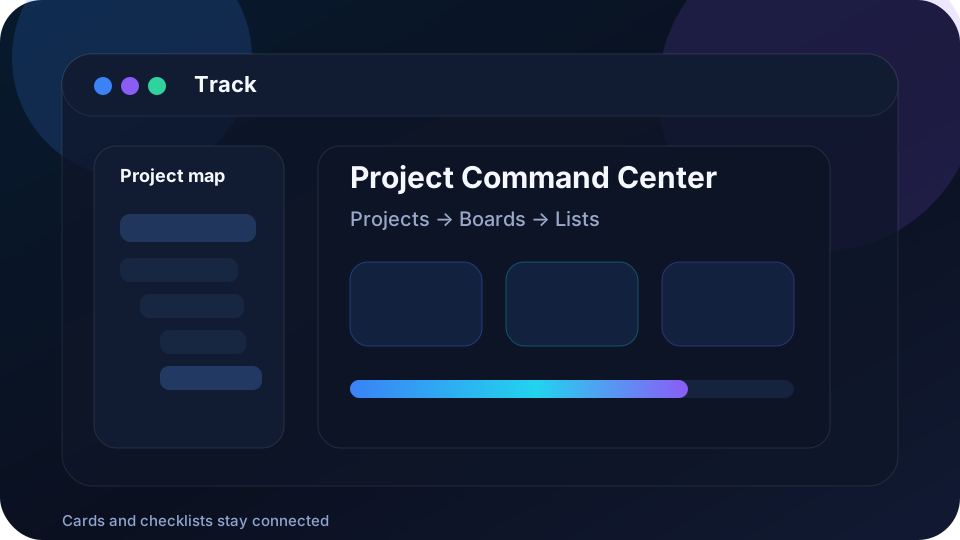
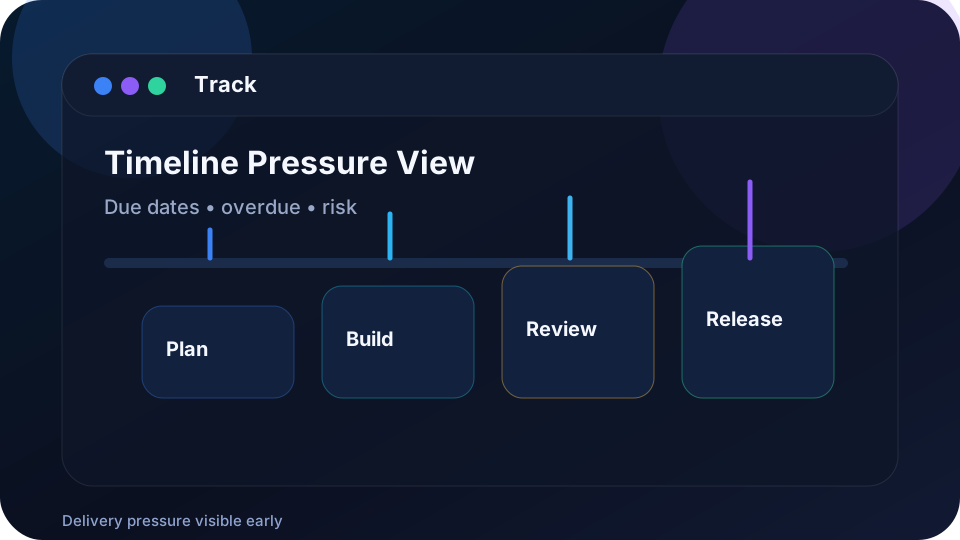


Track is useful when a project needs clear ownership, visible execution, evidence, testing discipline, and clean handover.

See scope, status, blockers, delivery risk, and what changed without searching through scattered notes.

Break work into execution cards, checklists, proof, comments, and review-ready deliverables.

Record tests, findings, evidence, acceptance decisions, and release readiness with a clean audit trail.
From project ownership to checklist execution, Track keeps every layer visible, measurable, and review-ready.
The homepage now keeps FAQ lightweight. Open the full Help Center for deeper answers about setup, project structure, daily work, proof, imports, access, and troubleshooting.
Track is a project command center for structured delivery work. It helps you keep projects, tasks, proof, comments, requests, and delivery decisions in one organized workspace instead of sca…
Start from the workspace or Project Hub. Open an existing project if one has already been created, or create the project first. After that, add boards for major work areas, lists for lanes…
An empty workspace usually means no project has been created yet, you have not been added to a project, or your current view is filtered too narrowly. Open the all-projects view first, then…
Create the project first. Then create a board, then a list, then cards. This order keeps the work clean because every task belongs to the right project area from the beginning.
Open the project first and read the board names, active lists, urgent cards, and recent comments before changing anything. This helps you understand the current operating picture before you…
Do not create many random cards with unclear titles. Start with clear boards, simple lists, and cards that represent real work packages. Put small steps inside checklists and put explanation…